
Help
日本語の説明(Japanese Help)བོད་ཡིག་ཐོག་གི་ངོ་སྤྲོད་ཤོག་ངོས་འདིའི་གཤམ་དུ་གསལ།(Tibetan Help)
本软件的汉语说明(Chinese Help)
The "Tibetan Reader" web page enables users to listen to Tibetan syllabic pronunciation that changes with different combinations of letters (such as prefixes, superscripts, root consonants, subscripts, vowels, suffixes). When you tap in sequence, you can listen to the spoken spelling of the letters that make up the Tibetan syllable and the final pronunciation of that syllable.
This web page was created to help many people around the world become familiar with the Tibetan language. This web page is made with the collaboration of Kawachen, a Tibetan cultural resource center based in Tokyo, and Natsuki Higashi. Kawachen did the planning and functional design and Natsuki Higashi did the programming and design implementation.
Alphabet
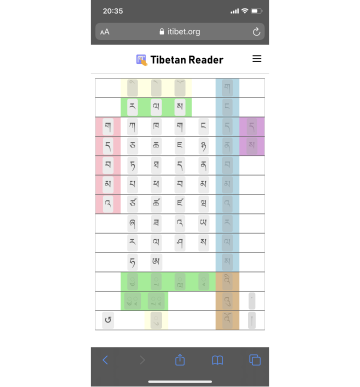
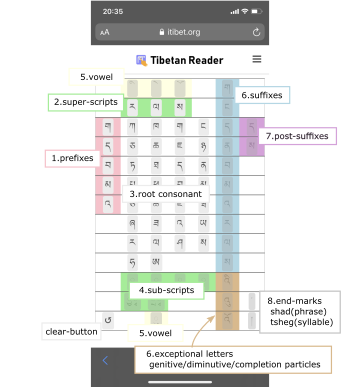
The Alphabet page displays the template of a Tibetan syllable. The 30 root consonants are placed at the center. The vowels and superscripts are placed above while the subscripts are placed below the root consonants. The root letter is one of the thirty root consonant (letter) either alone or with one of the vowels or modified letters such as superscripts, subscripts. The prefixes are placed on the left while the suffixes and post-suffixes are placed on the right of the root letters.
Alphabet Screen
Alphabet Screen
If you tap the button on the letter marked with color in order by numbered group as shown below, pronunciation of the letter or vowel and the step-by-step combined pronunciation of the Tibetan syllable can be heard. For details on the Tibetan syllable and it's spoken spelling, please refer to the explanation below.
If you tap the "་"(tsheg - syllable separator dot) button or "།"(shad - punctuation mark) button which is at the lower right end, it confirms the syllable. The letters that makes up the syllable is then displayed on the main page. It also sounds out the pronunciation of the syllable.
- Tap the "།"(shad) button to lengthen the short pause following the sounding out of the syllables in the History page.
- At the bottom of the suffixes column, affixed particles "འི་","འུ་","འོ་"(genitive, diminutive, completion) that are used when syllable is without the suffix are attached separately.
- Tap the bottom left Clear button to clear the results of the tap done so far.
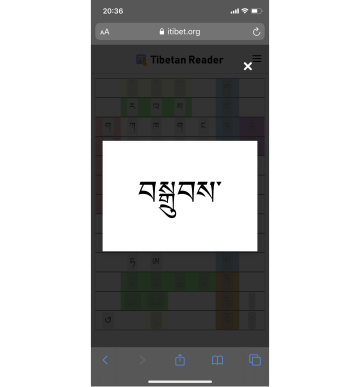
In Syllable letters page, Letters of the syllable will be displayed at the center.
Syllable letters page
- Utterance button appears in the lower left. Syllable is pronounced again by tapping.
- Tap the bottom right "×" button to close the window.
Note
- You can only tap and select the object when the background is of a certain color.
- The letters without the colored background does not come at the beginning and after tapping any letters without the colored background indicates no such combination can be built.
- The tapped letter changes to brown shrimp color. Before proceeding to the next component, you can re-select another letter of the same component. If you proceed to the next component, the background color will change to white.
- When you tap the letter other than the suffixes and post-suffixes letters, the combined pronunciation will be uttered. But after tapping suffixes and post-suffixes letters, you need to either tap the "་"(tsheg) button or the "།"(shad) button to sound out the pronounciation.
- If the speaker mark does not appear in the background of "་"(tsheg) button or "།"(shad) button, it indicate that there is no such syllabic combination.
- This app supports standard letter combinations used for native Tibetan words. It does not support Tibetan transliteration of Sanskrit words found in religious text, that does not follow the Tibetan syllabic structure.
- This web page does not support addition of genetive, agentive, dative and locative particle to the word that already has genetive, diminutive, completion partcles, such as "འི་","འུ་","འོ་". Such combinations do rarely exist and not wrong.
- Adjunctive adversative conjunction "འང" after the root letter is not supported.
- In term of one syllable, the adjunctive - adversative conjunction's abbreviated form "འང་"('ang) used after the root letter without suffixes and the subjoined letter "ཝ་ཟུར་"(wa sur) used below the subjoined letter "ར་བཏགས་"(ra btags) are not supported at this time.
- This web page sounds out a single syllable's pronunciation between the "་"(tsheg). The letter such as "བ་"(ba) that changes its pronunciation when it becomes auxiliary particle or after first syllable of a word. For example: The auxiliary particle "བ་"(ba) changes it's pronunciation to "wa" in case like "ཟླ་བ་"(da wa) is not supported at this time.
- In the Syllable letters page and in the History page, some uncommon multi-stacked characters may not be stacked vertically.
History
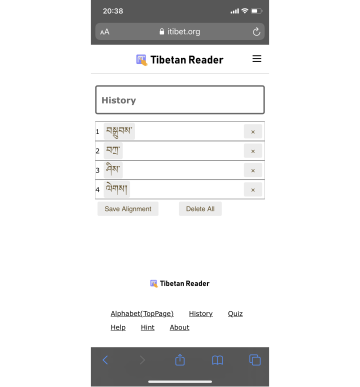
This History page, displays the roster of syllables that you have entered in the Alphabet page. Tap the particular line to sound out the syllable or tap the top left Play button to sound out the entire roster of syllables.
History page
- If there is a "།"(shad) after the syllable, it will lengthen the short pause following the sound out of syllable in the roster of syllables in the History page. This is displayed when you tap the "།"(shad) button at the end of the syllable in Alphabet page.
- If all syllables does not fit in the page, you can scroll page when the entire roster of syllables are not pronounced.
- You can clear the full history by tapping the Trash button on the second from the top left.
- You can also edit lines by tapping the top right "Edit" button. You can delete the syllable by the left button and move line by dragging the right mark for moving.
- You can finish the editing by tapping the top right "Done" button, which appears after tapping "Edit" button.
Quiz
This Quiz page is to test your ability to correctly identify by sound of the different Tibetan letters. Listen to the sound by tapping the Utterance button in the left and tap the letter that you think is correct. If you are correct, the green circle will appear and if you are wrong the red x cross will appear.
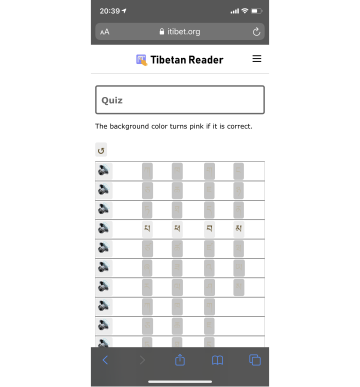
- By tapping the Clear button at the top right, you can clear the result and restart.
使い方
『Tibetan Reader』は文字の組み合わせで発音が変化するチベット語の音節の発音が聞けるアプリです。チベット語の音節を構成する文字を順にタップすると、つづり字読みの発音が聞けます。また、発音を聞いて文字をあてるクイズもついています。
このアプリは、世界中の多くの方がチベット語に親しめるよう、チベット文化の紹介を行っているカワチェンとNatsuki Higashiのコラボにより作成されました。
Alphabet
このページでは、チベット語の音節の構造と同様に、30個の子音に対応する基本文字(以下、基字)を中心に、前に前置字、上下に母音記号や上接字、下接字と呼ばれる要素が付き、後に後置字や再後置字と呼ばれる文字が配置されています。
背景に色のついている文字のボタンを順にタップしていくと、順次、各文字と結合後の発音を、チベット文字のつづり字読みで聞くことができます。チベット語の音節と、つづり字読みについては、後述の説明をご参照ください。
最後に右下にある音節の区切りを表す「་」(ツェク)ボタンや、その下の句読点にあたる「།」(シェー)ボタンをタップすることで音節が確定され、音節全体の文字を表す音節文字ページを表示して、音節の発音を発声します。
Alphabetページ
Alphabetページ解説
- 「།」(シェー)ボタンをタップした場合は、「་」(ツェク)ボタンをタップした場合に比べて、Historyページでの音節間の間が長くなります。
- 後置字の下には、例外的に1音節内に基字とは別に母音記号がついて使用される文字「འི་」、「འུ་」、「འོ་」が表示されています。「འི་」は「~の」という意味の属格助詞、「འུ་」は小さいものを表す縮小辞、「འོ་」は文の終わりを示す終助詞に使用されます。
- 左下のクリアボタンをタップすると、これまでタップした結果をクリアします。
音節文字ページでは、中心に音節の文字が表示されます。
音節文字ページ
- 左下の発声ボタンをタップすると音声が再度発声されます。
- 右下の「×」ボタンをタップすると、ページが閉じられます。
ご注意
- 選択開始前は背景に色のついていない文字は、先頭に来られない文字を表します。また、選択開始後は、色のついていない文字は、これまで選択している文字と組み合わせられないことを示します。
- 背景に色がついている文字でも、その組み合わせの音節が実際には使用されていない可能性もあります。
- クリックして選択された文字(自体)は海老茶色に変わります。次の要素に進む前に、同じ要素の別の文字をタップして選択しなおすこともできます。次の要素に進んで文字が確定されると背景が白になります。
- 後置字、再後置字以外は、文字をタップしたときに、それぞれの文字の発音の後に結合後の発音を発声しますが、後置字、再後置字がついた後の発音は、「་」(ツェク)ボタンや「།」(シェー)ボタンをタップした後に発声します。
- 「་」(ツェク)ボタンや「།」(シェー)ボタンの背景が白く、スピーカーマークが表示されていない場合、それまでタップした文字列のみからなる音節がないことを示します。
- サンスクリット語の転写など、チベット語の音節の構造に従っていない文字列には対応しておりません。
- 「འི་」「འུ་」「འོ་」が連続したり、その後に文字がある文字列、下接字が複数付く文字、「~も」という意味の基字に続く「འང」には対応しておりません。
- 「བ་」は単独や語頭などで発声した場合と、接尾語などで発声した場合で読み方が異なりますが、本アプリでは単独で発声した場合の読み方となります。
- 音節文字ページとHistoryページで、上下に重なって表示されるべき一部の結合文字が左右に分かれて表示される場合があります。
History
このページには、Alphabetページで入力した音節の履歴が表示されます。音節毎に1行になっており、特定の行をクリックして、その音節を発声させることができます。あるいは、左上の再生ボタンをタップして全音節を連続して発声させることができます。編集機能もあります。
Historyページ
- 音節の後ろにチベット語の句読点にあたる「།」(シェー)がついている場合は、音節のあとにすこし間が空きます。これはAlphabetページで音節の最後に「།」(シェー)ボタンをタップした場合に表示されます。
- 全音節が1ページ中に入らない場合、全音節発声中でないときにスクロールできます。
- ゴミ箱ボタンにより全体をクリアすることができます。
- 右上のEditボタンをタップすることにより編集モードになり、編集が可能です。編集モードでは左側のボタンで削除したり、右側の「行の整理」のマークをドラッグして音節の入れ替えが可能です。
- 右上の(Editボタンをタップした後に表示される)Doneボタンにより編集モードを終了します。
Quiz
このページは、音声を聞いて文字をあてるクイズになっています。左側の発声マークをタップして出る音声をきいて、これと思う文字をタップします。当たると○が、外れると×が表示され、その音声を聞けます。
Quizページ
- 右上のクリアボタンで結果をクリアしてクイズをやり直すことができます。
བོད་ཡིག་སྦྱོར་ཀློག
བོད་ཡིག་སྦྱོར་ཀློག་གི་ཉེར་སྤྱོད་མཉེན་ཆས་འདིར་སྔོན་རྗེས་མིང་གསུམ་དང་མགོ་འདོགས་དབྱངས་དང་ཚེག་ཤད་སོགས་ཀྱི་ཡི་གེ་རྣམས་རང་རང་གི་ཐོབ་གནས་ལྟར་སྟེང་འོག་གཉིས་དང་གཡས་གཡོན་དུ་རིམ་པ་བཞིན་བཀོད་ཡོད། འདིར་གསལ་བྱེད་རྣམས་རྐྱང་ཀློག་དང་སྡེབ་སྦྱོར་བྱས་ཏེ་ཀློག་ཐུབ་པའི་ནུས་པ་ལྡན། དྲི་རྩེད་ཀྱི་ནུས་རྩལ་ཆ་རྐྱེན་ནི་གདམ་ཀ་བྱས་པའི་ཡི་གེ་དེ་ནོར་ཡོད་ན་ནོར་རྟགས་དང་འགྲིག་ཡོད་ན་འགྲིག་རྟགས་བརྒྱབ་པའི་ནུས་པ་ཡོད་ལ། དཔེར་ན། ཡིག་རྒྱུགས་ལེན་མཁན་གྱི་དགེ་རྒན་ཞིག་དང་ཀུན་ནས་མཚུངས།
དབྱངས་གསལ། (Alphabet)
དབྱངས་གསལ་འཆར་བའི་བརྙན་ཤེལ་འདིར་ཡི་གེའི་སྡེབ་སྦྱོར་བྱེད་ཚུལ་གྱི་འགྲོས་ལྟར་མིང་གཞི་དཀྱིལ་དང་སྟེང་འོག་ཏུ་དབྱངས་དང་མགོ་འདོགས་དང་གཡས་གཡོན་དུ་སྔོན་འཇུག་རྗེས་འཇུག་ཡང་འཇུག་རྣམས་ཟུར་དུ་བཏོན་ནས་ཡོད། འདིར་དམིགས་བསལ་གྱིས་འི་འུ་འོ་རྣམས་ཚེག་ཁྱིམ་གཅིག་གི་ནང་དུ་སྦྱོར་བདེའི་ཕྱིར་ལོགས་སུ་བཀལ་ནས་བཀོད་ཡོད། བརྙན་ཤེལ་འདིའི་གཡས་ཟུར་འོག་ཏུ་འཆར་ཡོད་པའི་ཚེག་རྟགས་དང་ཤད་རྟགས་གང་རུང་ཐོག་ཏུ་རེག་ཚེ་ཚེག་ཁྱིམ་རང་བཞིན་དུ་གྲུབ་པའི་ཡི་གེ་རྣམས་ཀྱི་སྒྲའི་ང་རོ་འབྱིན། བརྙན་ཤེལ་འདིའི་གཡོན་འོག་ཏུ་ཡོད་པའི་གནས་ལོག་མཐེབ་གནོན་ཐོག་ཏུ་རེག་ཚེ་སྔར་ནང་འདྲེན་བྱས་པའི་ཡི་གེ་རྣམས་བསུབས་ནས་བསྐྱར་དུ་འགོ་ནས་ནང་འཇུག་བྱེད་ཐུབ། བརྙན་ཤེལ་འདིའི་གཡས་འོག་ཏུ་ཡོད་པའི་ཚེག་རྟགས་གམ་ཤད་རྟགས་སུ་ཐུག་རེག་བྱས་ཚེ་ཚེག་ཁྱིམ་དུ་གྲུབ་པའི་ཡིག་འབྲུ་འཆར་བ་དང་སྒྲ་གདངས་གྲག ཚེག་བར་གཅིག་ཏུ་གྲུབ་པའི་ཡིག་འབྲུ་དག་གི་རྗེས་སུ་ཤད་བརྒྱབ་ན་བྱས་རབས་བརྙན་ཤེལ་ནང་གི་ཚེག་ཁྱིམ་གཅིག་ཏུ་གྲུབ་པའི་ཡི་གེ་རྣམས་ཀློག་དུས་ཀྱི་བར་མཚམས་ཅུང་རིང་བའི་ཚུལ་གྱིས་བཀླག
ཚེག་ཁྱིམ་གཅིག་གི་དབང་དུ་བྱས་ནས་ཁ་སྐོང་གི་འང་དང་ར་བཏགས་སོགས་ཀྱི་འོག་ཏུ་ཝ་ཟུར་སོགས་འདོགས་དགོས་ཚེ་དེའི་མཐུན་རྐྱེན་ཆ་ཚང་ཞིག་ད་དུང་བསྐོང་མི་ཐུབ་པས་རྗེས་སུ་ཡར་རྒྱས་སུ་གཏོང་གི་ཡིན། འདིར་བོད་ཡིག་རྣམས་ཀློག་པའི་གདངས་ནི་གསལ་བྱེད་རྣམས་རྐྱང་ཀློག་དང་ཚེག་བར་གཅིག་གི་དབང་དུ་བྱས་ནས་འདིར་བཀོད་ཡོད་པས། ཚིག་གྲོགས་ལ་བལྟོས་ནས་སྒྲའི་གདངས་ལ་འགྱུར་བ་འགྲོ་མི་ཐུབ།དཔེར་ན། ཟླ་བ་(da wa)ལྟ་བུ་ལ་ཟླ་བ་(da ba)ཞེས་པའི་སྒྲ་ཐོན།
བྱས་རབས། (History)
བྱས་རབས་བརྙན་ཤེལ་ནི་དབྱངས་གསལ་འཆར་བའི་བརྙན་ཤེལ་ནས་ནང་འདྲེན་བྱས་པའི་ཡི་གེ་རྣམས་གསོག་འཇོག་བྱས་ཡོད་པའི་བརྙན་ཤེལ་ཞིག་ཡིན། དེར་ཡོད་པའི་ཚེག་ཁྱིམ་དུ་གྲུབ་པའི་ཡིག་འབྲུ་བྱེ་བྲག་པ་རེ་རེའི་ཐོག་རེག་ཚེ་བྱེ་བྲག་པ་དེའི་སྒྲ་གདངས་ལ་ཉན་ཐུབ། དེ་མིན་བརྙན་ཤེལ་གྱི་གཡོན་ཐོག་ཟུར་དུ་ཡོད་པའི་མཐེབ་གནོན་རྟགས་དེའི་ཐོག་རེག་ཚེ་བརྙན་ཤེལ་དེའི་ངོས་ན་ཡོད་པའི་ཡི་གེ་རྣམ་གཅིག་རྗེས་གཉིས་མཐུད་དེ་ཚང་མ་ཀློག་པའི་ནུས་པ་ཚང་ཡོད། གཡོན་ཐོག་ཏུ་ཡོད་པའི་ཡིག་སྙིགས་སྣོད་རྟགས་སུ་རེག་ཚེ་དེའི་ནང་གང་ཡོད་ཚང་མ་གཙང་སེལ་བྱེད། Edit རྩོམ་སྒྲིག་རྟགས་སུ་རེག་ཚེ་རྩོམ་སྒྲིག་བྱེད་ཐུབ།
དྲི་རྩེད། (Quiz)
དྲི་རྩེད་ཅེས་པའི་བརྙན་ཤེལ་འདིས་བྱེད་ལས་ནི་བརྙན་ཤེལ་གྱི་གཡོན་དུ་ཡོད་པའི་སྒྲ་སྐྱེད་རྟགས་ཅན་ཐོག་ཏུ་ཐུག་རེག་བྱས་ཚེ་དེའི་ཐད་ཀྱི་ཡི་གེ་གང་རུང་ཞིག་གི་སྒྲ་འབྱིན་ལ། སྒྲ་དེ་གཟུགས་གང་ལ་ཐོབ་མིན་བརྟག་དཔྱད་ཀྱི་ཚུལ་གྱིས་གདམ་ག་བྱེད་ཐུབ། གལ་ཏེ་གདམ་ཀ་བྱས་པའི་ཡི་གེ་དེ་ནོར་ཡོད་ན་ནོར་རྟགས་དང་འགྲིག་ཡོད་ན་འགྲིག་རྟགས་རང་བཞིན་གྱིས་ཐོན། བརྙན་ཤེལ་འདིའི་གཡས་ཐོག་དུ་ཡོད་པའི་གནས་ལོག་མཐེབ་གནོན་ཐོག་ཏུ་རེག་ཚེ་གདམ་ཀ་བྱས་རྗེས་སུ་འཆར་བའི་ནོར་རྟགས་སམ་འགྲིག་རྟགས་རྣམས་རང་བཞིན་གྱིས་ཟུབ་ནས་ཐོག་མ་ལྟར་འཆར།
怎么用
『Tibetan Reader』是根据藏文通过字母的组合变化构成不同音节的规律来发音的APP软件。按照藏文音节拼读规则点击相应图标即可实现字词的拼合发音。另附听发音猜文字测验。
本软件由致力于传播西藏文化的KAWACHEN,出于帮助世界各地的人们了解和亲近西藏语言的目的,联合Natsuki Higashi共同开发。
Alphabet 字母表
此页面按照藏文音节结构设置:30辅音字母居中,前加字、后加字、再后加字、上下元音符号以及上加字、下加字等,或分置前后,或布局上下,环列四周而各就其位、各司其职。
按照藏文音节拼读规则,依序点击设有背景色的图标,可以实现拼读过程及拼合音节的发音。藏文音节拼读规则请参看后续说明。
点击右下角音节分隔符号「་」或其下相当于句号的「།」图标,表示输入结束,新页面即显示和读出所输入的完整拼合音节。
Alphabet页面(Alphabet Screen)
Alphabet页面分布示意图(Alphabet Screen)
(1)前加字 (2)上加字 (3)辅音字母 (4)下加字 (5)元音符号 (6)后加字 (6)特殊文字 (7)再后加字 (8)分隔号 音节 句子
- 在History页面,「།」结尾词的间隔时间比「་」结尾词略长。
- 后加字下面是三个特殊文字「འི་」、「འུ་」、「འོ་」,置于词尾配伍使用,分别表示“~的”、“小的”以及“(话语或文章)就此告终”的意思。
- 点击左下角撤销图标,撤销此前操作。
拼合音节页面的正中显示输入的字词。
拼合音节页面(Syllable letters screen)
- 点击左下角扬声器图标,重听发音。
- 点击右下角「×」图标,关闭页面。
注意事项
- 输入前无背景色的文字,表示不能放置在音节开头。开始输入后仍无背景色的文字,表示不能与此前输入的文字配伍构成音节。
- 个别情况下,输入有背景色文字构成的拼合音节,在实际应用中可能并不存在。
- 当前输入文字显示绛红色背景,此时可重新输入,进行下一步操作后背景变成白色。
- 除后加字和再后加字的发音需待点击「་」或「།」之外,其他文字的发音与输入同步。
- 当「་」和「།」背景为白色,且无扬声器图标时,表示所输入的拼合音节不存在。
- 本软件目前不支持梵文转写等与藏文音节结构规则不一致的文字。
- 本软件目前不支持下加字叠加、表示“也”的「འང」等文字的输入。
- 本软件目前仅支持「བ་」的字母发音,不支持「བ་」用作词尾等情形时的变异发音。
- 个别情况下,在文字输入或History页面,上下叠加字可能显示成前后排列形式。
History 历史
此页面显示用户在Alphabet页面的输入历史。每个字词占用一行,点击任意一行,可播放该行字词发音。点击左上角播放图标,可连续播放当前页面全部字词的发音。本页面同时还具有编辑功能。
History页面(History screen)
- 词尾带有相当于句号的「།」,其发音间隔略长。词尾出现「།」是在Alphabet页面输入的结果。
- 上下划动页面功能,在连续播放字词发音时不可使用。
- 点击垃圾箱图标,删除所有历史记录。
- 点击右上角Edit图标,进入编辑模式。编辑模式下,左键删除,右键调整音节顺序。
- 点击右上角Done图标(点击Edit图标后出现),退出编辑模式。
Quiz 测验
此页面是听发音猜文字测验。点击左侧扬声器图标,听到发音后选择答案,正确显示○,错误显示×,同时播放所选文字的正确发音。
Quiz页面
- 点击右上角返回图标,重新开始游戏。